Time tracking and timesheets
Log time on issues, compare it with the estimate and export weekly timesheets for billing.
Log the time you spend on each issue. NaatOps adds it up per issue and per week, so you can bill clients for the hours and see where effort went.
Owners, admins, managers and developers can log time. Viewers and clients can't.
Log time on an issue
- Open the issue and scroll to Time.
- Choose Log time.
- Enter the Time spent, such as 1h 30m, 1.5 or 45m, and the Day you did the work. It can't be a future day, and one entry can be at most 24 hours.
- Optionally say What you worked on.
- Leave Billable to the client ticked, or untick it for internal work such as training or rework.
- Choose Log time.
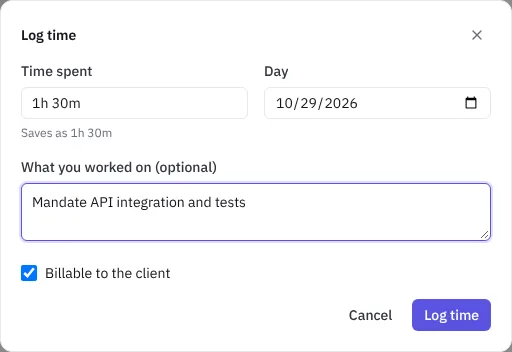 Logging time on an issue
Estimate and remaining time
The Time section shows the time Logged, an optional Estimate and what's Remaining, or how far it's Over by. Type an estimate such as 4h, 2d or 90m into the box. The list below shows each entry with who logged it, when, and whether it's billable.
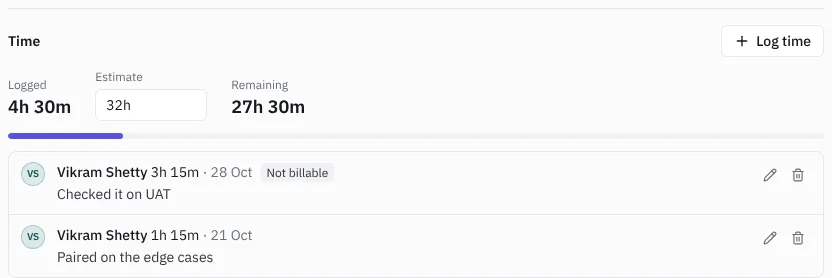 The Time section of an issue
To fix a mistake, use the pencil to edit an entry or the bin to delete it. You can change your own entries. Owners and admins can also change other people's, and those changes go into the audit log.
Weekly timesheets
Open Timesheets in the sidebar, under Operate.
- The week runs Monday to Sunday. Move with the arrows, or choose This week.
- Owners, admins and managers see the whole team, grouped by person and then by issue. Pick one person under Everyone, or one project under All projects. Everyone else sees only their own time.
- The top line shows the total logged, how much is billable and how much isn't.
- Log time on this page lets you find an issue by key or title and log time against it without opening it.
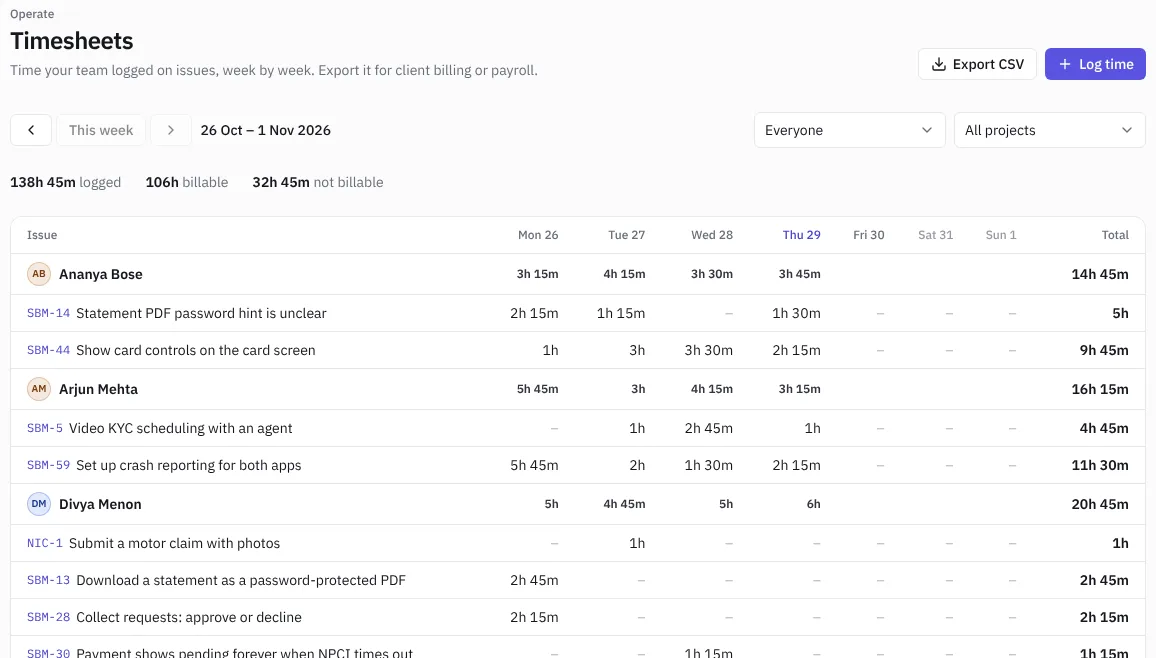 A weekly timesheet
Export for billing or payroll
Choose Export CSV to download the week as you're viewing it, with the date, person, project, issue, hours, billable flag and note on each row. Open it in Excel to build an invoice or check hours. Every time entry is also part of the workspace export in Settings › Workspace.