Board and backlog
See the sprint as columns, drag work forward, rank the backlog.
The board
The Board tab shows issues as cards in columns, one per workflow status. It opens on the active sprint.
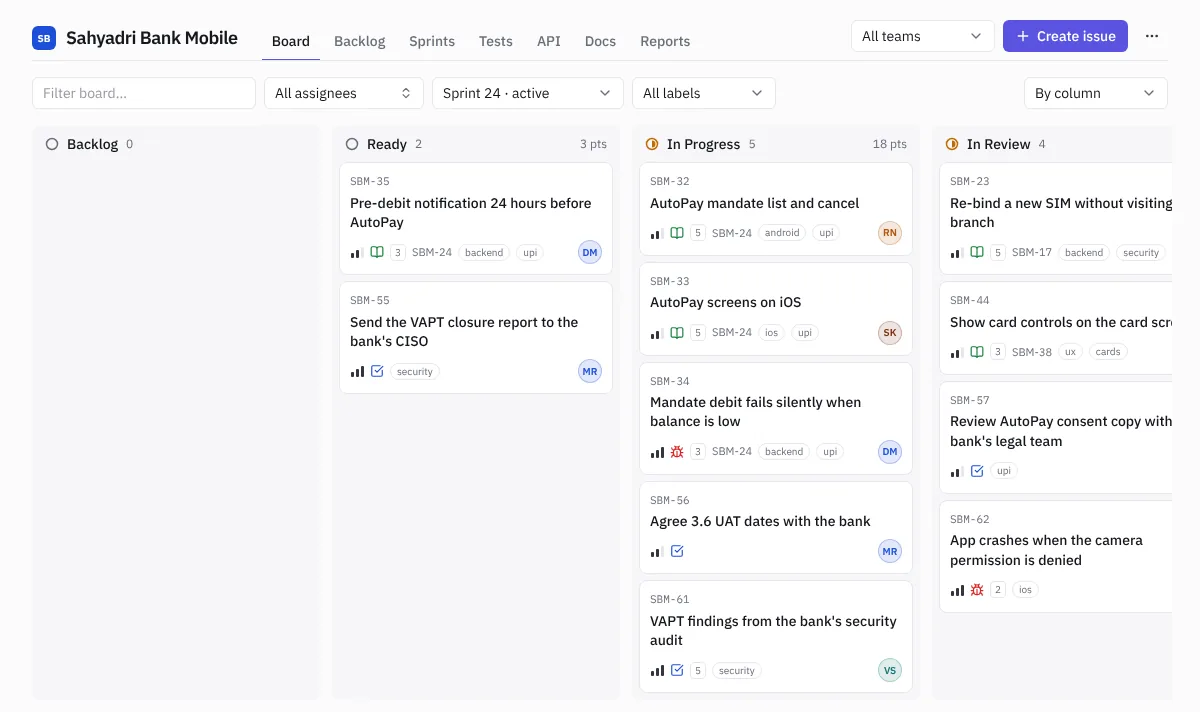 A sprint board
- Move work by dragging a card to another column. On a phone, press and hold a card for a moment, then drag; a quick swipe scrolls the board instead.
- Filter by text, assignee, sprint (All sprints, No sprint or a particular sprint) and label. The team filter at the top right shows one team's work.
- Group the board By column or By epic.
- Each column shows how many issues it has and their points.
- Each card shows the key, title, priority, type, points, epic, labels and assignee. Click it to open the issue.
- Tick cards (hover to see the checkbox) to edit several at once.
- Create issue or C on the board puts the new issue in the sprint the board is showing.
Cards can move to any column unless an admin has set allowed moves in Settings › Workflows. Then a card dropped on a column it can't move to stays where it was.
The backlog
The Backlog tab lists all open work in rank order. The order is the team's priority: the top is what's next.
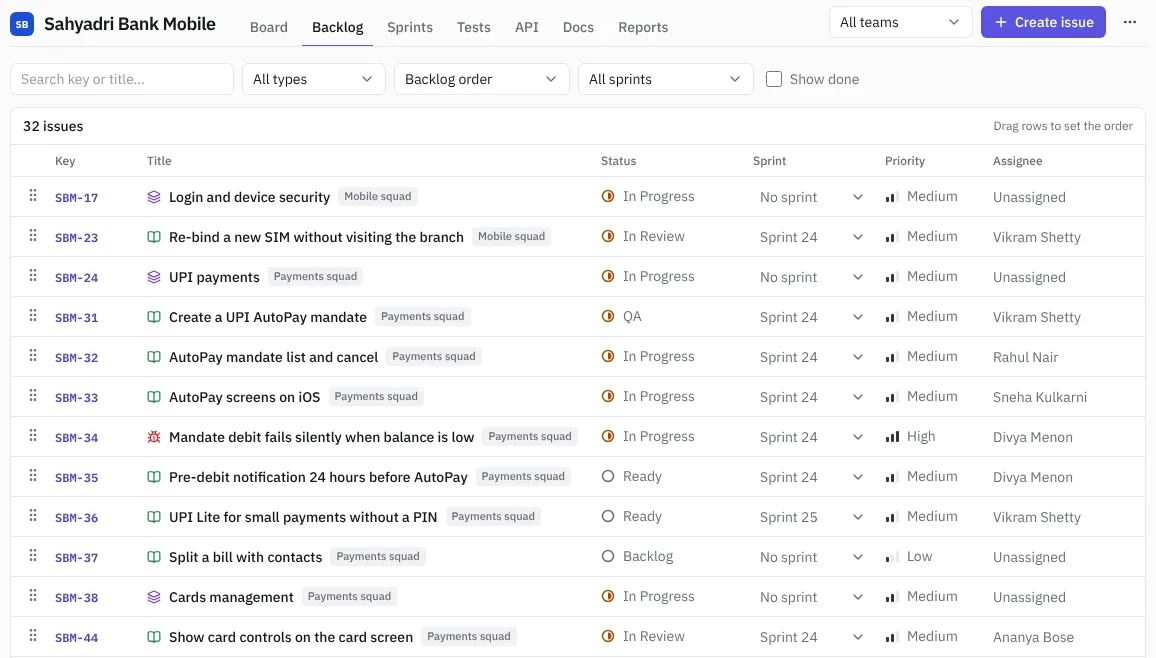 The backlog
- Drag rows by the handle on the left to change the order.
- Search by key or title and filter by type.
- Switch the order from Backlog order to sort by priority, last update or key.
- Tick Show done to include finished work.
- Filter by sprint shows all sprints, only work not in a sprint, or one sprint.
- The Sprint column is a picker: choose a sprint on any row to move that issue into it, or No sprint to take it out.
For more ways to fill a sprint, see Plan a sprint.