Client access and the client portal
Invite clients for free to follow their projects, report bugs and ask for changes, while team notes stay private.
Give your client a login of their own. In the client portal they see only the projects you share with them: the open work, releases and the conversation on their issues. They can report bugs and ask for changes, and the team picks those up from triage.
Clients are free. They don't use a seat on any plan and don't count toward the Free plan's 10 people.
Invite a client
Owners and admins do this in Settings › Members.
- Under Invite someone, enter the client's email.
- Pick the role Client (free).
- Under Projects they can see, tick each project to share.
- Choose Send invite.
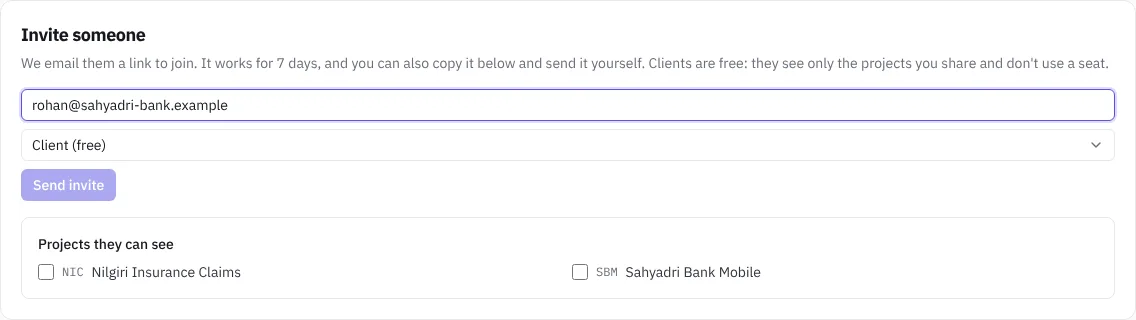 Inviting a client to one project
The client gets an email with a link. They set their name and password and land in the portal. To share more projects later, or fewer, choose Change next to the client under Active members.
What the client sees
The client's sidebar has Overview, Inbox, their shared projects, Settings (their own account only) and Help. If they open a link to a team page, such as the board, they're taken to the portal page for it instead.
- Overview lists their projects with progress and anything of theirs that's waiting.
- Each project shows its work, filtered by Open, Raised by me or All, with type, priority and status, and its releases with progress.
- An issue shows its description, files, the conversation, and who's working on it, the release and the dates.
- A release shows its progress and, when the team asks for it, lets the client accept it or ask for changes. See Releases and client reports.
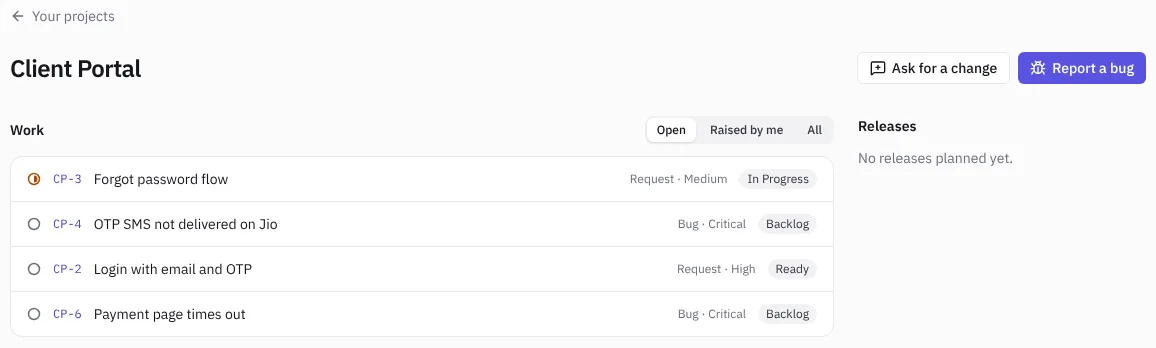 A project in the client portal
Clients don't see the board, backlog, sprints, test cases, API requests, docs, reports, time, or anything in projects you haven't shared.
Report a bug or ask for a change
- In a project, the client chooses Report a bug or Ask for a change.
- They describe it and say how urgent it is.
- They choose Send to the team. They can attach screenshots on the issue once it's sent.
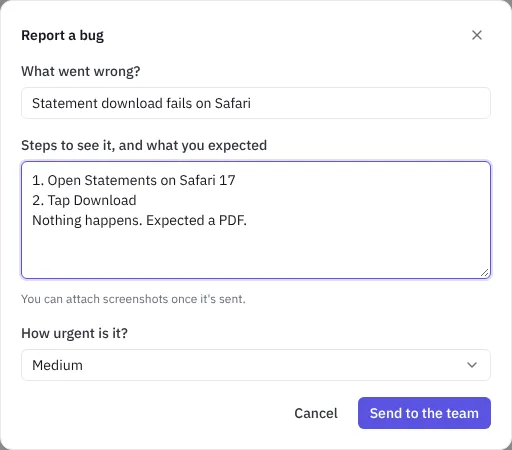 A client reporting a bug
The new issue goes to the team's My work › Triage queue, marked as raised by the client. Accept it into the right project and status, or Decline it. See Guide for business analysts.
Talk to the client, and keep team notes private
Comments on an issue are visible to clients who can see that project, and they can reply.
To write something only the team should see, tick Team only, hidden from clients under the comment box. The button changes to Add team note. Clients never see team notes and aren't notified about them.
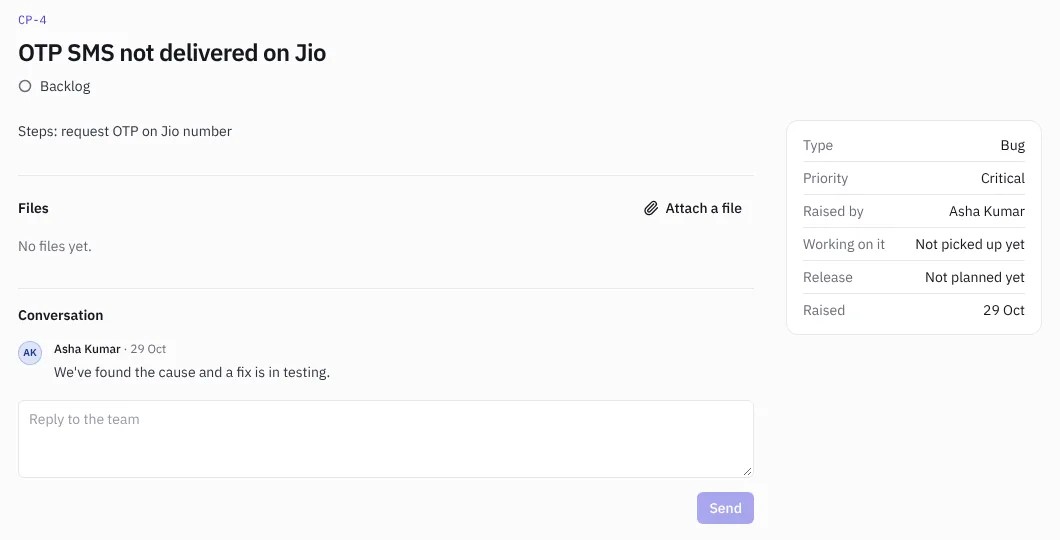 The issue as the client sees it, without the team note
Client role or release report?
- Use a client release report link to show what shipped and how it was tested, with no login. See Releases and client reports.
- Use the Client role when the client should raise bugs and requests, follow them and talk to the team.