Docs
Write requirements, specs and runbooks inside the project, review and publish them.
Each project has its own docs: requirement documents, tech specs, runbooks, test plans and decision records, kept next to the work they describe.
Turn docs on
Docs are on for every new workspace and project. If a project's Docs tab shows Enable docs instead, docs were switched off for it: choose Enable docs to turn them back on. Owners and admins can do this for the workspace; managers can do it for a project.
Write a doc
- Choose New doc.
- Pick a starter: Blank, PRD, Tech spec, Runbook, Test plan or ADR (architecture decision record).
- The doc opens in the editor, titled Untitled doc or after the starter, such as PRD. Type over the title and write. The editor supports headings, lists, checklists, tables, code blocks and diagrams.
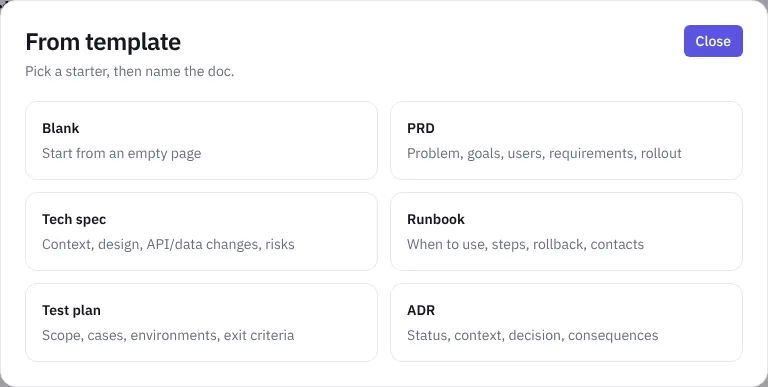 Doc templates
Your changes save as you type. If you lose your connection, they're kept on your device and sync when you're back. If someone else changed the doc at the same time, NaatOps asks whether to reload theirs or keep yours.
To group docs, choose New folder and give it a name.
Review and publish
A doc moves through Draft, In review, Changes requested and Published.
- Choose Request review and tick the teammates who should review it. Invite them to the workspace first if they aren't in the list.
- A reviewer opens the doc and chooses Approve, or Request changes and writes what needs to change. The note goes to the author.
- Choose Publish when it's ready. Each publish saves a new version.
History
History lists every version. Open one to see it as it was, or Show diff to compare. Restoring an old version creates a new version, so nothing is lost.
Link docs and issues
Link a doc to the epics, stories or bugs it describes. The doc lists its Linked issues, and the issue lists the doc in its Docs section. Mentioned in shows other docs that link to this one.
Delete and restore
Deleted docs go to the project's Trash and stay there for 30 days. Restore them from Trash in that time.