Find your way around
The sidebar, My work, search, quick create, keyboard shortcuts and themes.
The sidebar
The sidebar on the left is the same on every screen.
| Section | What's there |
|---|---|
| My work | Your own queue of work, plus shared queues such as Bugs and Triage. Start your day here. |
| Inbox | Assignments, mentions, comments and changes to issues you watch. |
| Plan | Roadmaps, Releases and PI planning. |
| Insights | Overview of the whole workspace, Portfolio of epics across projects, and Delivery metrics. |
| Operate | People and capacity for who is working on what, and Pipelines for builds and deployments. |
| Projects | Every project in the workspace. Each opens on its board. |
| Settings | Your notifications, and the workspace settings if you are an owner or admin. |
Collapse the sidebar with the button next to the NaatOps name if you want more room. Your account menu is at the bottom: use it to switch workspaces (when you belong to more than one), open settings or sign out.
My work
My work lists work as queues:
- Mine: assigned to you.
- Delivery: epics, stories and tasks.
- Bugs: open defects, including bugs filed from test runs.
- Operations: incidents and requests.
- Overdue: past the due date.
- Unassigned: work without an owner.
- All: everything in the workspace.
- Triage: new requests, incidents and unsorted work that someone needs to accept or decline.
Narrow any queue with the filters for project, priority, type, status, assignee, sprint, due date and label. To keep a set of filters, choose Save this view and give it a name. Saved views appear under Saved views for you next time.
You can change status and assignee straight from the list. Tick several rows to edit them together.
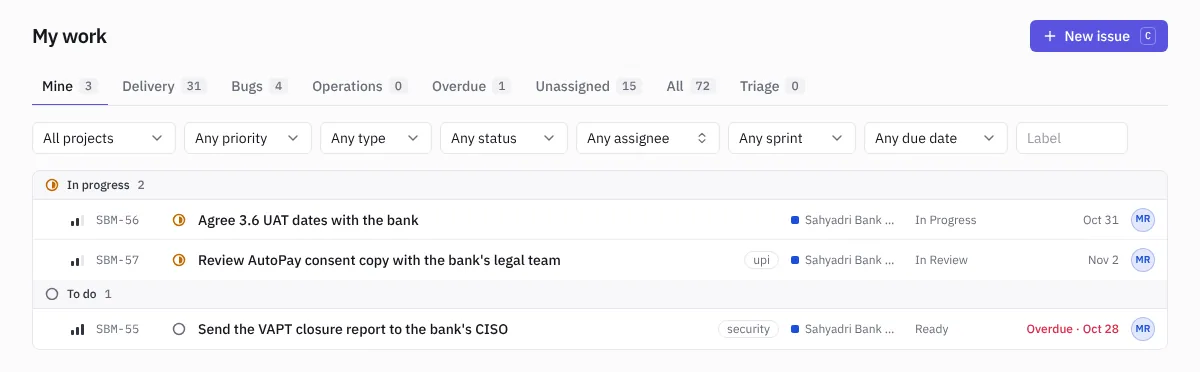 My work
Search
Press Ctrl K (Windows, Linux) or ⌘ K (Mac), or click the search box at the top. Type an issue key such as SBM-34, words from a title, a doc name or a page name such as Releases. Press Enter to open the result.
Create from anywhere
Press C on any screen (when you are not typing in a field) to open New issue. See Issues.
Keyboard shortcuts
| Keys | Does |
|---|---|
| C | New issue |
| Ctrl K or ⌘ K | Search |
| Ctrl Enter or ⌘ Enter | Create the issue in the New issue window |
| P, F, B, S | In a test run: mark the case Passed, Failed, Blocked or Skipped |
| J, K | In a test run: next and previous case |
| Esc | Close a window |
Light and dark
The theme button at the top right switches between System, Light and Dark. System follows your computer's setting.
On your phone
NaatOps works in your phone's browser and can be installed like an app. See Use NaatOps on your phone.