Issues
Create, edit, link, comment on and organise epics, stories, tasks, bugs and requests.
An issue is one piece of work. Every issue belongs to a project and has a key made from the project key and a number, such as SBM-34.
Issue types
| Type | Use it for |
|---|---|
| Epic | A feature or client requirement that takes several stories |
| Story | Something a user can do once it's built |
| Task | Work that isn't a user-facing feature, such as setting up an environment |
| Bug | Something that doesn't work as it should. Bugs also have severity (SEV1 outage to SEV4 cosmetic), the environment and steps to reproduce |
| Sub-task | A smaller piece of a story or task |
| Incident | A problem in production. New incidents go to Triage |
| Request | A request from a client or another team. New requests go to Triage |
Admins can rename types and add custom fields in Settings.
Create an issue
- Press C, or choose Create issue on a project or New issue on My work.
- Type the title. The project is the one you're in; change it at the top if needed.
- Optionally add a description and set the type, priority, assignee, epic, team, due date and labels with the buttons under the title.
- Press Enter in the title, or Ctrl Enter / ⌘ Enter, or choose Create issue.
Tick Create more to keep the window open for the next issue. That's the quickest way to add a list of stories.
If your workspace has issue templates, pick one in the Template menu at the top of the window to fill in the fields and add its sub-tasks.
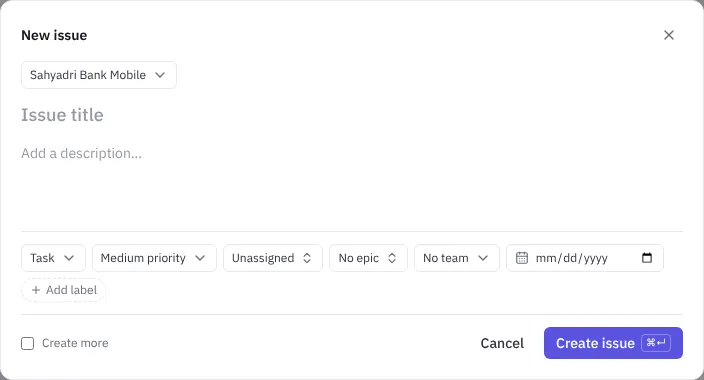 The New issue window
The issue page
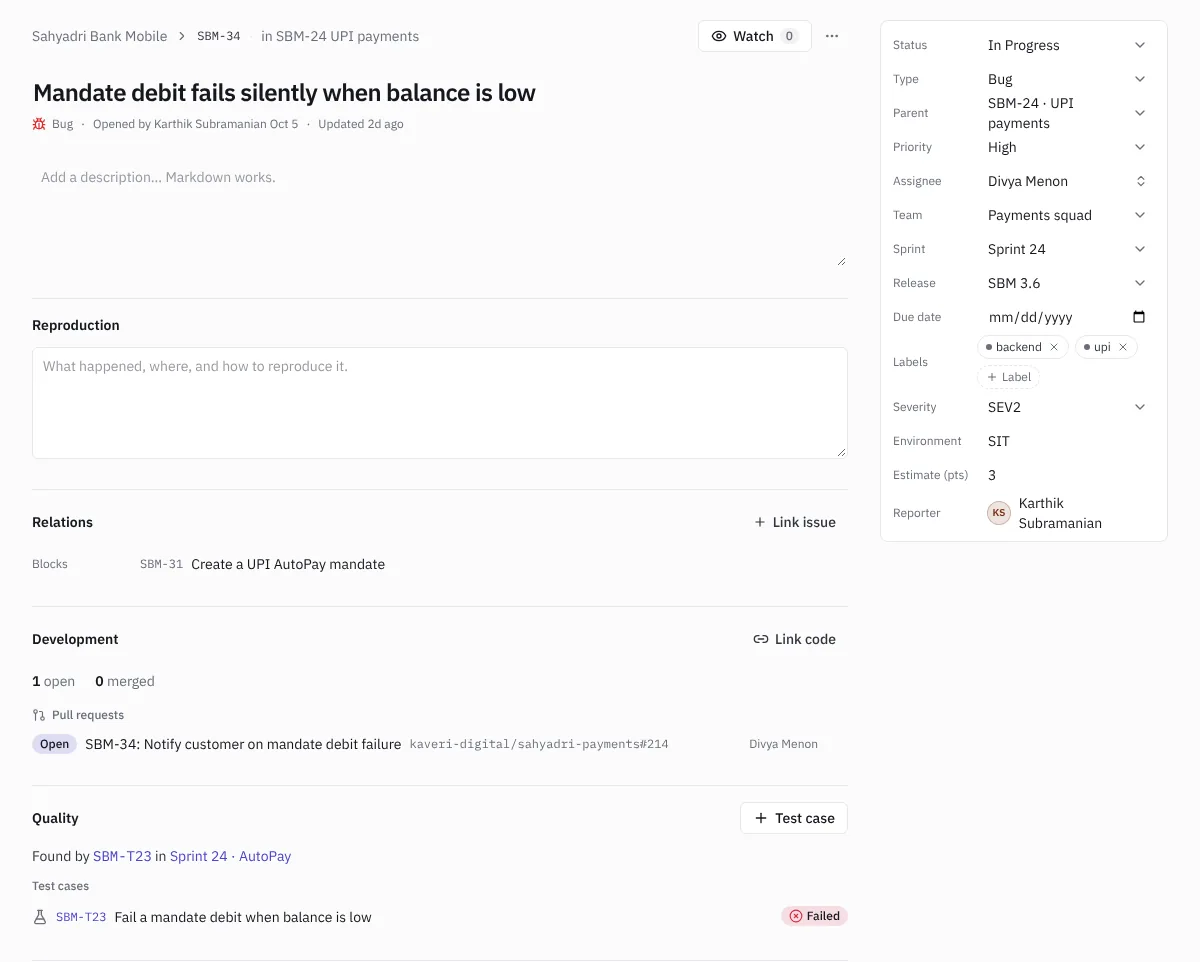 An issue page
- Title and description. Click to edit. The description takes Markdown: headings, lists, checklists, tables and code.
- Properties on the right: status, type, parent, priority, assignee, team, sprint, release, due date, labels, estimate in points, and reporter. Bugs also show severity and environment. Custom fields appear here too.
- Relations. Choose Link issue and pick Blocks, Blocked by, Related to or Duplicate of.
- Development. Branches, pull requests and deployments that mention the issue key, and links you add with Link code.
- Quality. Test cases and API checks that cover the issue, with their last results. + Test case writes a new case already linked to it.
- Docs. Project docs linked to this issue.
- Attachments. Upload file for screenshots, logs or documents.
- Activity. Every change, and the comment thread.
On an epic, Work in this epic lists its stories. On a story or task, Sub-issues lists its sub-tasks; add one with Add a sub-task.
Comments and mentions
Write in the box at the bottom and choose Comment. Type @ to mention someone; they get a notification. You can edit or delete your own comments from the ⋯ menu on the comment.
Watch an issue
Choose Watch at the top of an issue to hear about its comments and status changes. You automatically watch issues you create, are assigned to or comment on. Unwatch to stop.
Edit many issues at once
On My work or the Board, tick the checkboxes on several issues. A bar appears where you can set status, assignee, sprint, parent, priority or labels for all of them, then choose Apply.
Delete and restore
Choose ⋯ › Archive on an issue. It leaves the board and backlog. Undo straight away from the message that appears, or ask an owner or admin to restore it from Settings › Workspace › Archived issues.
The ⋯ menu also has Copy link.