Sprints and retrospectives
Create, plan, start and close sprints, estimate with planning poker, follow the burndown and run the retro.
Create a sprint
- Open the project's Sprints tab and choose New sprint.
- Give it a name (Sprint 25), a goal (Customers can log in with OTP), a start date and an end date. If the project has several teams, pick the team the sprint belongs to.
- Choose Create sprint. It starts as Planned.
Plan a sprint
Add issues to the sprint in any of these ways:
- In the Backlog, pick the sprint in the Sprint column of each issue. Set Filter by sprint to Not in a sprint to see only what's left to plan.
- On the Board, choose All sprints or No sprint, tick the cards you want, then pick the sprint in the Sprint field of the bar that appears and choose Apply.
- On My work, tick issues and do the same.
- On an issue page, set Sprint.
The sprint card shows its total points and how many issues are done. Compare the points with the team's velocity in Reports.
Estimate with planning poker
Planning poker lets the team size stories together before planning. Everyone picks a card in private, the cards turn over at once, and the number you agree on is saved as the issue's story points.
Start a session
-
Open the project's Sprints tab and choose Planning poker.
-
Choose Start a session.
-
Give it a Session name, such as Sprint 26 planning.
-
Pick the Cards:
- Fibonacci points: 0, 1, 2, 3, 5, 8, 13 and 21.
- T-shirt sizes: XS, S, M, L and XL. They're saved as 1, 2, 3, 5 and 8 points.
Both decks also have ? (not sure) and ☕ (need a break).
-
Under Issues to estimate, pick where they come from: the Backlog, a sprint, or All open issues. Only issues without points is ticked, so stories that already have an estimate are left out. Untick any issues you don't want, then choose Start session.
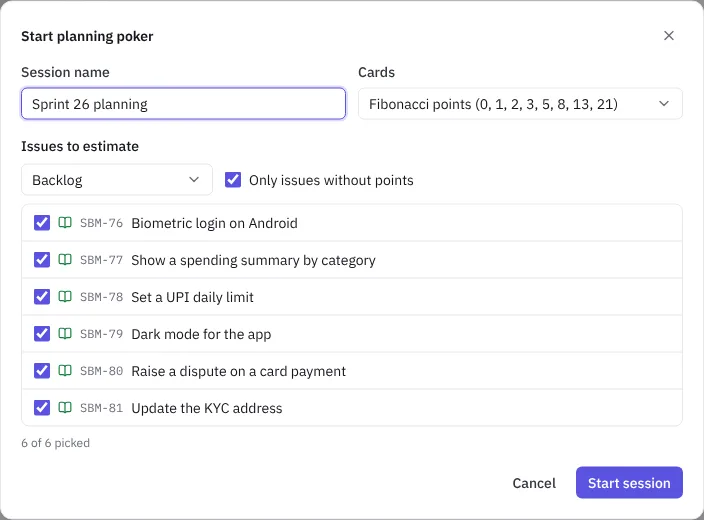 Starting a planning poker session
Choose Copy link and send it to the team, for example in the meeting chat.
Vote
- Everyone opens the link and sees the same issue, with its description.
- Each person picks a card under Your card. The table shows who has picked and who is still thinking, but not what they picked.
- When everyone has picked, the person running the session chooses Turn the cards over.
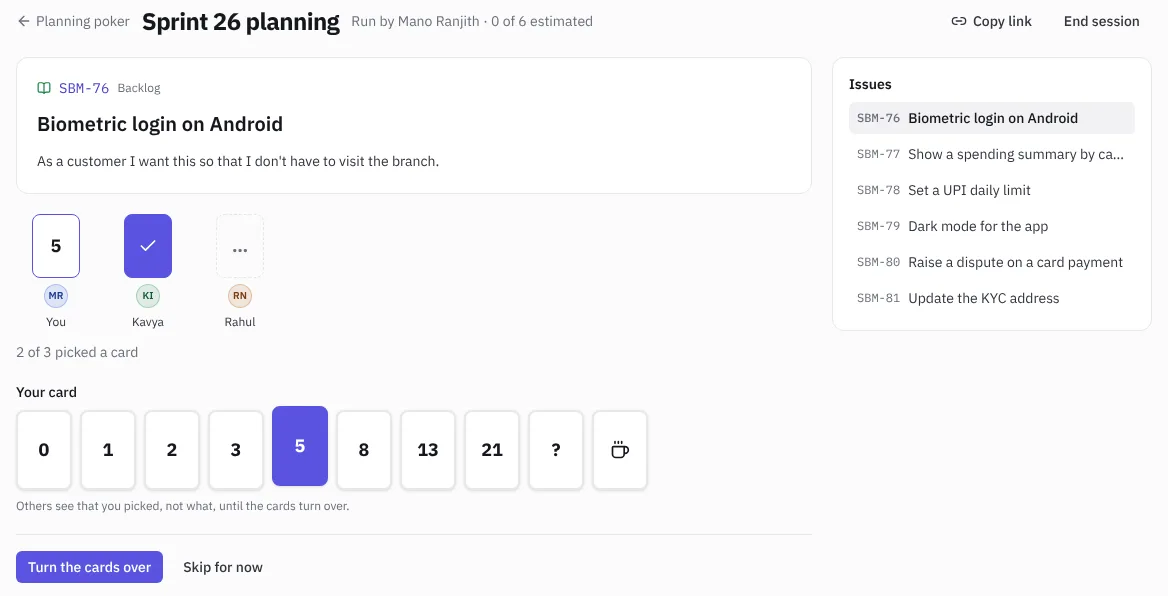 The table before the cards turn over
The result shows Everyone agrees with the number, or the Range from lowest to highest, with the Average for Fibonacci cards. When the numbers differ, the people with the lowest and highest cards explain their thinking, and you vote again.
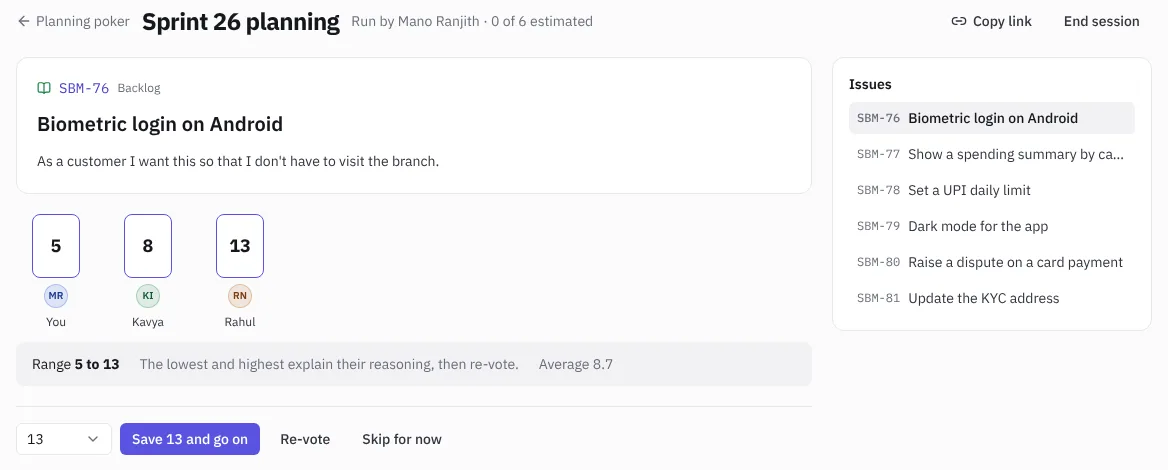 The cards turned over
Save and move on
The person who started the session, or any owner, admin or manager, runs each round. The list on the right shows every issue in the session and what each one got.
- Save N and go on saves the number as the issue's story points and moves to the next issue. A suggested card is filled in; pick another in the menu next to the button if the team agreed on something else.
- Re-vote clears the cards for another round on the same issue.
- Skip for now moves on; skipped issues come back at the end.
- Click any issue in the list to estimate it next.
- End session closes it. Saved estimates stay on their issues, and nobody can pick cards after that.
Owners, admins, managers and developers can vote. Viewers can open the link and watch. Past sessions are listed under Finished with how many issues got an estimate.
Start the sprint
Change the sprint's status from Planned to Active with the menu on the right of the sprint. The board now shows this sprint, and everyone on it gets a "sprint started" notification.
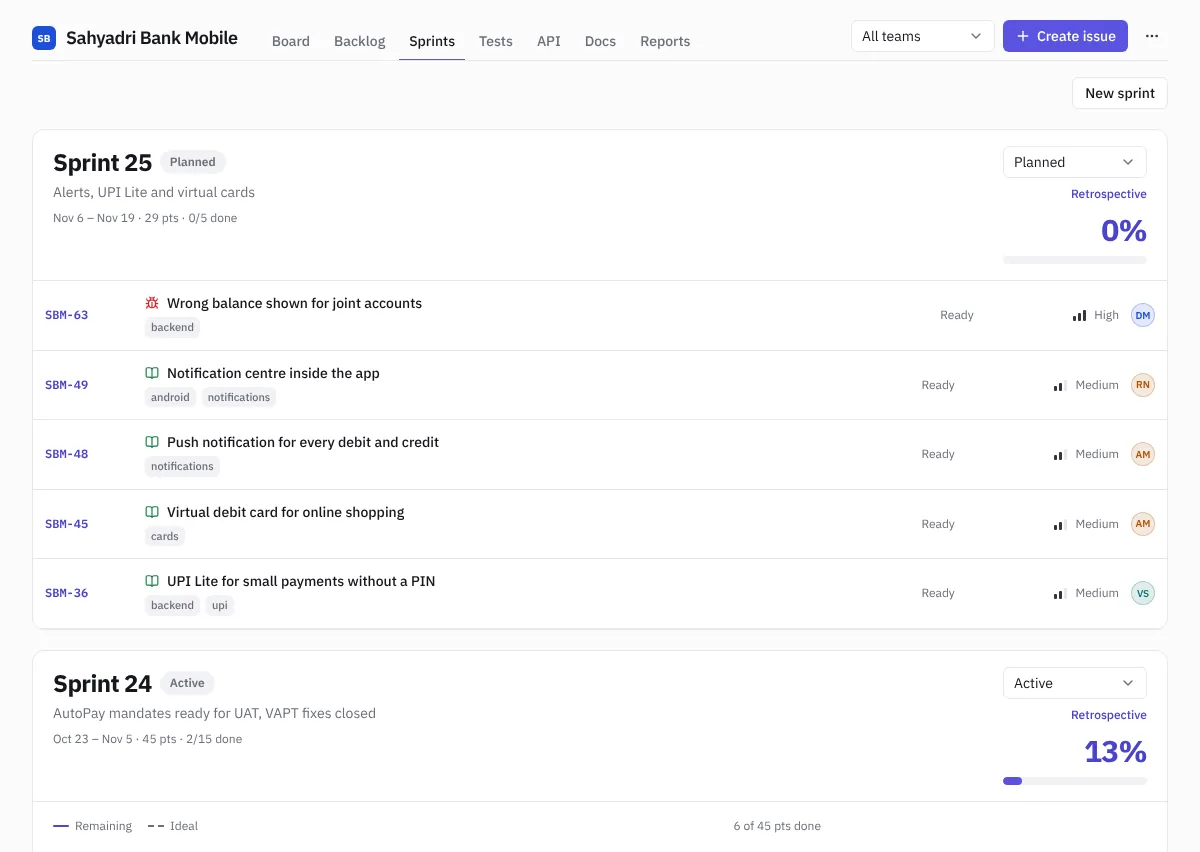 A sprint with its burndown
Follow the burndown
The active sprint shows a burndown: the points left each day against an ideal straight line. Choose Show as table to see the numbers.
Close the sprint
- Change the status to Completed.
- If issues are still open, NaatOps asks where they should go:
- If a planned sprint exists, choose its name (for example Sprint 26) to move them there, or Backlog to take them out of any sprint.
- If there is no planned sprint, choose Complete sprint and they go to the backlog.
- If everything is done, just choose Complete sprint.
- The sprint closes and its numbers go into velocity and say/do in Reports.
 Closing a sprint
Run the retrospective
Choose Retrospective on any sprint. The board has three columns:
- Went well: keep doing these.
- To improve: what slowed the team down.
- Actions: owned follow-ups for the next sprint.
Everyone can add notes and vote, so the team can talk about the most-voted notes first.
 A sprint retrospective