Guide for QA and testers
Write and import test cases, run them each sprint, file bugs and prove coverage.
NaatOps keeps test cases next to the stories they prove, so nobody needs a separate test tool.
Write test cases
- Open your project's Tests tab and choose New test case.
- Give it a title that says what is checked, such as Reject an expired card.
- Add preconditions (for example Signed in with a saved card) and the steps: what the tester does and what they should see.
- Set the priority and status. Only Ready cases are picked for new runs by default; Draft ones are still being written and Deprecated ones are kept for history.
- In Covers, link the story or bug this case proves.
- Tick Automated if a script already runs this check.
Group cases into suites such as Login and security or UPI payments with the list on the left.
Bring cases from Excel, TestRail, Zephyr or Xray
Choose Import on the Tests tab and drop an .xlsx or .csv file of up to 5,000 rows. NaatOps matches columns such as title, steps, expected result, suite and covers, and shows the first cases so you can check them before importing. Story keys in a Covers column, like MOB-12, are linked for you. Old .xls files need saving as .xlsx first. See Test cases and test runs.
Run a sprint's tests
- On the Tests tab choose New test run. Name it (for example Sprint 24 regression), pick the sprint, the environment you're testing on (staging, iOS 18…) and the release if there is one. Choose every ready case or one suite. To run a hand-picked set, tick the cases first and choose Run N selected.
- Go through the cases one by one. For each, mark Passed, Failed, Blocked or Skipped. The keys P, F, B and S do the same, and J and K move to the next and previous case.
- Note what happened in What happened: the actual result, device and data used.
- When a case fails, choose File a bug. The bug is created with the case, steps and your notes, in the same sprint, and linked back to the case.
- When you're done, choose Complete run.
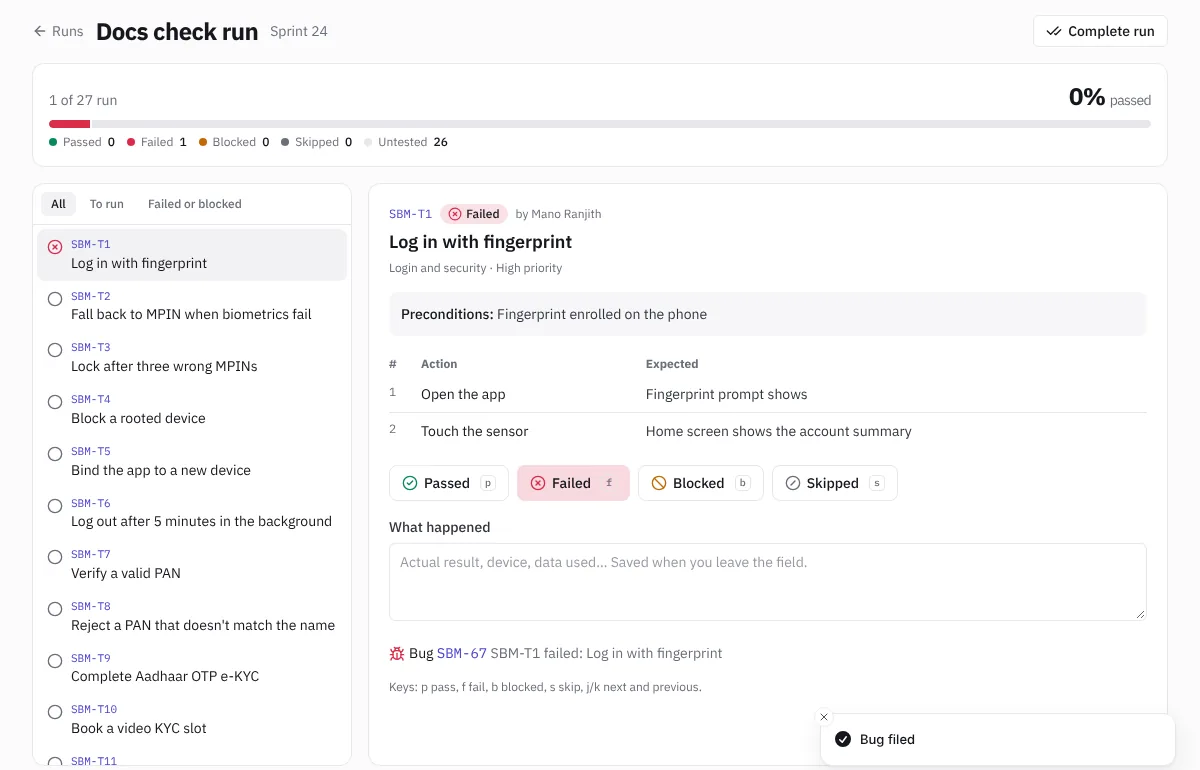 Recording results in a test run
On a phone, the run shows one case at a time with large result buttons. Add this phone writes the device, OS, browser and screen size into your notes.
API checks
API requests in the API tab can carry checks such as status is 200 or body contains "approved". Link a request to a story and its result shows in the story's Quality section and in the client release report. See API workspace.
Show what was tested
- The story's Quality section shows its cases and last results.
- A release shows how many of its tests passed.
- The client release report lists each story with its tests and API checks, so the client sees the proof. See Releases and client reports.