Pipelines and code
Link pull requests to issues, follow builds and see what's live in each environment.
Link code to issues
Mention an issue key such as CP-12 in a branch name, commit message or pull request title. Once the repository is connected, the issue's Development section shows the branches and pull requests, whether they're open or merged, and where the code is deployed.
Anyone can also paste a link to a pull request, commit or branch with Link code on the issue page. That works without connecting anything.
Connect a repository
Owners and admins add each repository once, then paste its details into GitHub.
-
Open Settings › Repositories and choose Add repository.
-
Enter the Repository URL (such as
https://github.com/your-org/your-app). The name fills in from it. -
Pick the CI provider (GitHub, GitLab, Jenkins or Other) and the Default branch. Optionally tie it to one Project.
-
Choose Add repository. NaatOps shows the webhook details with copy buttons:
- Payload URL
- Content type: application/json
- Secret: copy it now, it isn't shown again
- Events: pull requests, pushes, branch or tag creation, and deployment statuses
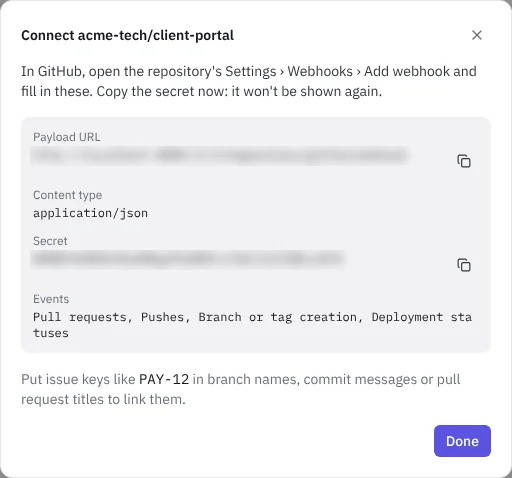 The webhook details shown after adding a repository
 -
In GitHub, open the repository's Settings › Webhooks › Add webhook, paste those in and save. Then choose Done in NaatOps.
The Connected repositories list shows each repository's provider, project, default branch and whether its webhook secret is set. Change the default branch there. If a secret is lost or leaked, choose New secret: the old one stops working at once, so paste the new one into GitHub straight after.
Pipelines
Pipelines shows how your builds are doing and what's live where.
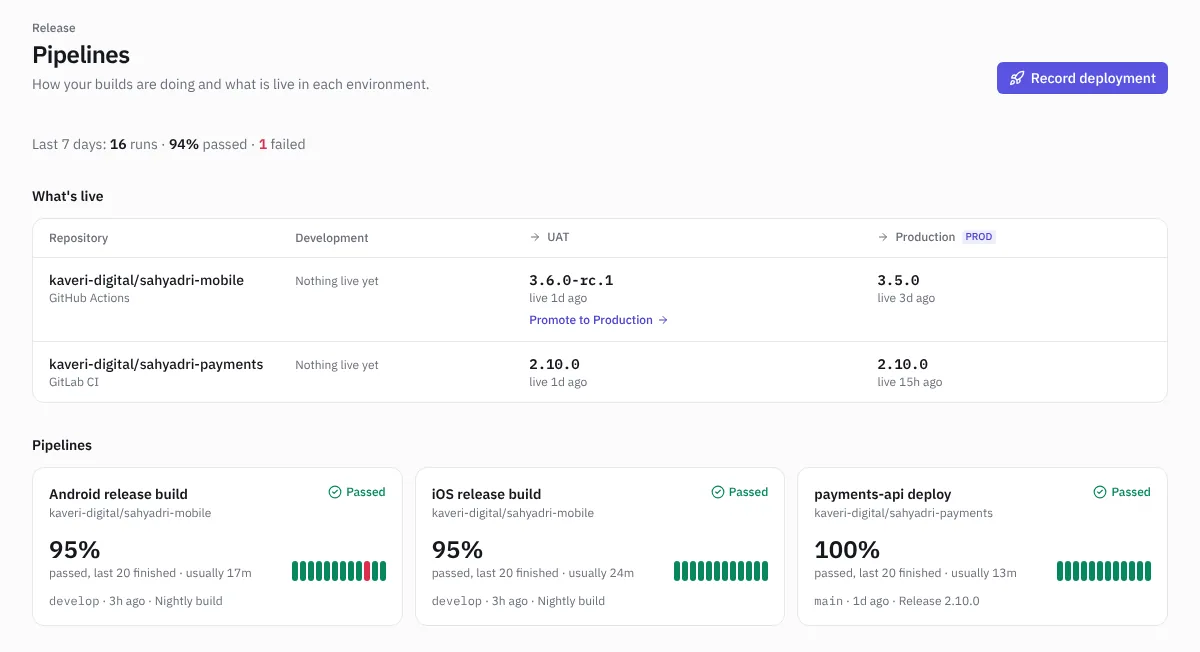 Pipelines
- What's live: for each repository, the version live in each environment (for example Development, UAT, Production), with failed or in-flight attempts. Promote to… moves a version to the next environment, and Mark live or Failed records how an attempt went.
- Pipeline cards: each pipeline's last result, pass rate, usual duration and a strip of recent results.
- Runs and Deployments: every build and deployment, with filters.
- Record deployment: note a deployment by hand, for teams that deploy without a connected CI. Mark it live or failed afterwards.
To send build and deployment events from your CI (GitHub Actions, GitLab CI, Jenkins or your own scripts), open Connect CI at the bottom of the page. It shows the address to send events to and which signature header each provider uses.
Delivery metrics
With deployments coming in, the Delivery page shows the four DORA metrics. Tick which environments count as production. See Reports and insights.