Get started with NaatOps
Create your workspace, set up your first project and bring your team in.
NaatOps is one place for your team's stories, sprints, test cases, API checks and releases. When a release ships, you can send your client a report that shows what was built and how it was tested.
This page takes you from sign-up to a working project in about fifteen minutes.
1. Create your workspace
- Go to the NaatOps home page and choose Start free.
- Enter your name, your company name, your work email and a password. Team size is optional.
- Choose Start your free trial.
You land in your new workspace. The workspace is your company's space in NaatOps: every project, person and setting lives inside it.
Two notes appear at the top of the screen:
- Confirm your email. Open the link we sent you. If it didn't arrive, choose Send it again.
- Your trial. Every new workspace gets 30 days of the Delivery plan for free, with no card needed. When the trial ends you choose a plan or stay on Free. Nothing is deleted. See Plans, billing and invoices.
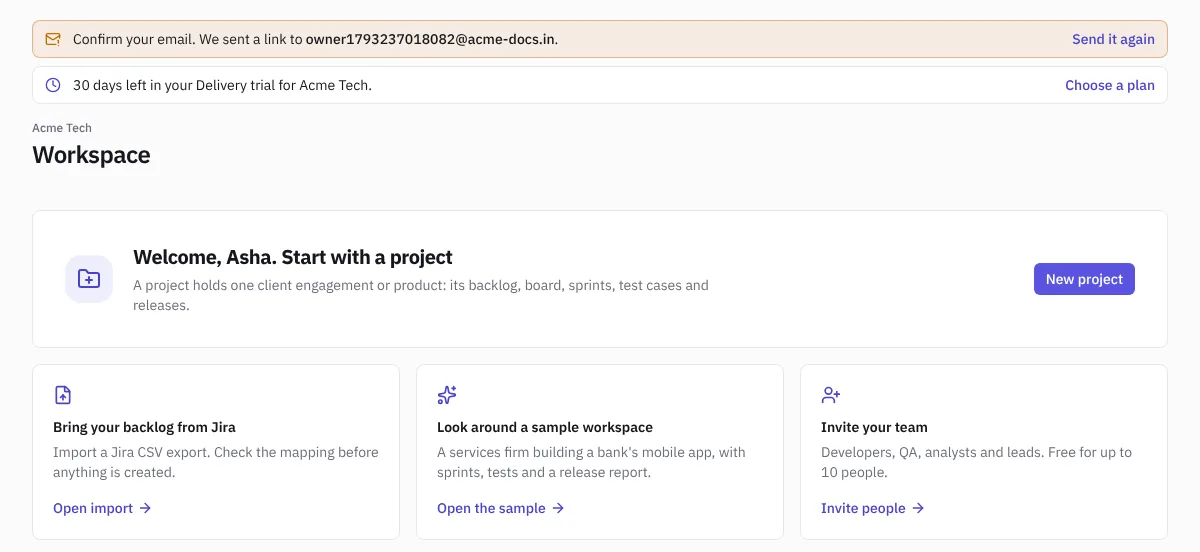 The welcome screen of a new workspace
2. Choose how to begin
The welcome screen offers three ways in:
- New project. Start from a blank project.
- Bring your backlog from Jira. Connect your Jira Cloud site and bring a project over with its sprints, comments and attachments, or import a CSV export. You see a preview before anything is created. See Import from Jira or CSV.
- Look around a sample workspace. Opens a sample services firm that is building a bank's mobile app, with sprints, test cases, API checks and a client release report. It's a safe place to try things. Switch back to your own workspace from the account menu at the bottom left.
3. Create your first project
A project holds one client engagement or one product: its backlog, board, sprints, test cases, API requests, docs and reports.
- Choose New project.
- Enter the project name, for example Client Portal.
- Enter a short key, for example CP. Every issue in the project is numbered with this key: CP-1, CP-2 and so on. Pick it carefully, because people will say it out loud in stand-ups.
- Add a description if you like, then choose Create.
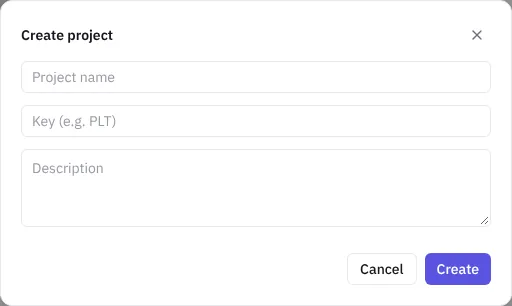 Creating a project
The project opens on its board. The tabs across the top are Board, Backlog, Sprints, Tests, API, Docs and Reports.
Owners, admins and managers can create projects. On the Free plan a workspace can have 3 projects.
4. Invite your team
- Open Settings › Members.
- Under Invite someone, enter a colleague's email and pick their role: Admin, Manager, Developer or Viewer. See Roles and permissions to choose. For people at your client, pick Client (free) instead; see Client access and the client portal.
- Choose Send invite.
They get an email with a link. If the email is new to NaatOps, the link opens a page where they set their name and password and join the workspace. If they already have a NaatOps account with that email, for example in another company's workspace, they sign in to that account, or enter its password on the page, to join. Invitations last 7 days. You can also copy the invite link shown under the form and send it yourself, for example on WhatsApp or Slack.
The Free plan includes up to 10 people, counting pending invitations.
5. Add your first work
- Press C anywhere to create an issue. Type a title and press Enter. See Issues.
- Open the Sprints tab and create your first sprint. See Sprints and retrospectives.
- Open Tests and write the test cases for your first story, or import them from Excel. See Test cases and test runs.
What to read next
- Find your way around for the screens and shortcuts.
- The guide for your role: developers, business analysts, QA, tech leads, managers and Scrum Masters or admins.