API workspace
Send API requests, keep them in collections with environments and checks, monitor them, run them from CI and link them to stories.
The API tab is a Postman-style API client inside each project. Your team doesn't need a separate tool or seat to test endpoints, and the results stay with the stories they prove.
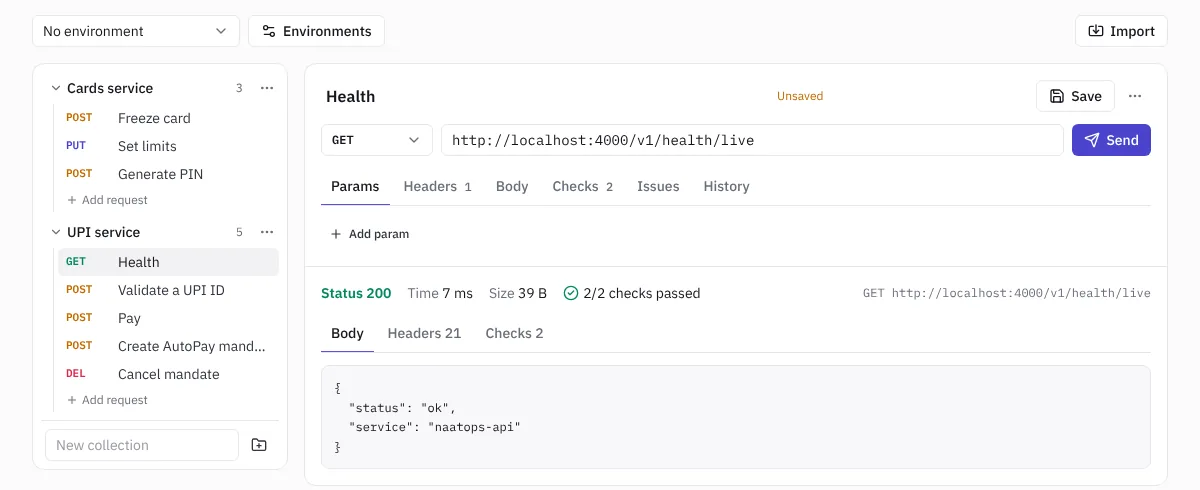 Sending a request
Collections and requests
- Type a name under the list on the left, such as UPI service, and choose the folder button to add a collection.
- Choose Add request under it.
- Pick the method (GET, POST, PUT, PATCH, DELETE…) and enter the URL, for example {{baseUrl}}/v1/orders.
- Add params, headers and a body (JSON, form or text) in the tabs under the URL.
- Choose Send. The response shows the status, time, size, body and headers.
- Choose Save to keep the request. Unsaved changes are marked.
The ⋯ menu on a request duplicates or deletes it. The menu on a collection adds a request, runs the whole collection, sets up a monitor or deletes it.
Environments
Environments hold values that change between dev, staging and production, such as the base URL and tokens.
- Choose Environments.
- Add an environment, such as Staging, and its variables, such as baseUrl and token.
- Mark tokens and passwords as Secret. Secrets are stored encrypted and never shown again; type over them to replace them.
- Pick the environment in the menu at the top left.
Use a variable anywhere in a request as {{name}}, for example an Authorization header of Bearer {{token}}.
Checks
Add checks in the Checks tab so a request tells you whether it worked:
- Status is, for example 200.
- Body contains some text.
- Header contains a value.
- JSON value equals, for a field in a JSON response.
- Faster than a number of milliseconds.
After each send, the response shows how many checks passed.
Run a collection
Pick the environment at the top left first. Then, from a collection's ⋯ menu, choose Run collection. Every request runs in order with that environment, and you see which passed and which failed, with the reason for each failure.
If a request uses a variable the environment doesn't set, the run says which one, for example {{baseUrl}} isn't set. Pick an environment that sets it.
Run a collection from CI
Your pipeline can run a collection after every deploy and fail the build when an API breaks.
- Make an API token in Settings › My account and save it in your CI as a secret called NAATOPS_TOKEN.
- Pick the environment at the top left, then choose Run collection from the collection's ⋯ menu.
- Open Run it from CI at the bottom of the results and choose Copy.
- Paste the command as a step in your pipeline, after the deploy.
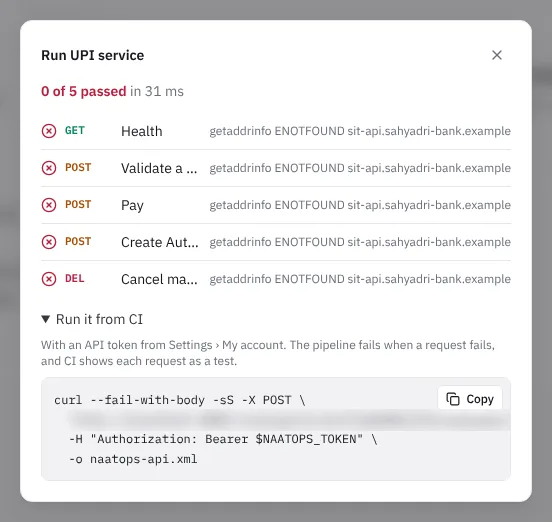 The CI command for a collection
The command asks for a JUnit report, so CI shows each request as a test and saves the report as naatops-api.xml. When any request fails, NaatOps answers with an error and the step fails the build.
- The environment is picked by name, as in &environment=SIT. Change it in the address to run the same collection against UAT. A name that doesn't exist fails with a list of the environments the project has.
- Leave out &failOnError=true if the build should carry on even when a request fails.
- Leave out &format=junit to get the results as JSON instead.
Monitors
A monitor runs a collection on a schedule, keeps a pass and fail history, and tells you when your API starts failing. Use it to keep an eye on a dev, SIT or UAT server between releases.
- On the API tab, choose Monitors. Or choose Monitor on a schedule from a collection's ⋯ menu, which fills in the collection and the environment you have picked.
- Choose Monitor a collection (or New monitor once you have one).
- Pick the Collection, the Environment and How often: every 5 or 15 minutes, every hour, every 6 hours or every day.
- Choose Start monitoring. The first run starts within a minute.
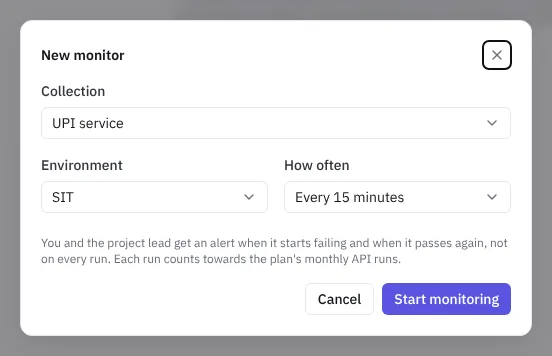 Setting up a monitor
Each monitor shows:
- Passing, Failing (with how long it has been failing), Waiting for the first run or Paused.
- When it last ran and when it runs next.
- A strip of recent runs, green for passed and red for failed. Point at one to see when it ran and how many requests failed.
- When the latest run failed, each failing request with its status and the reason.
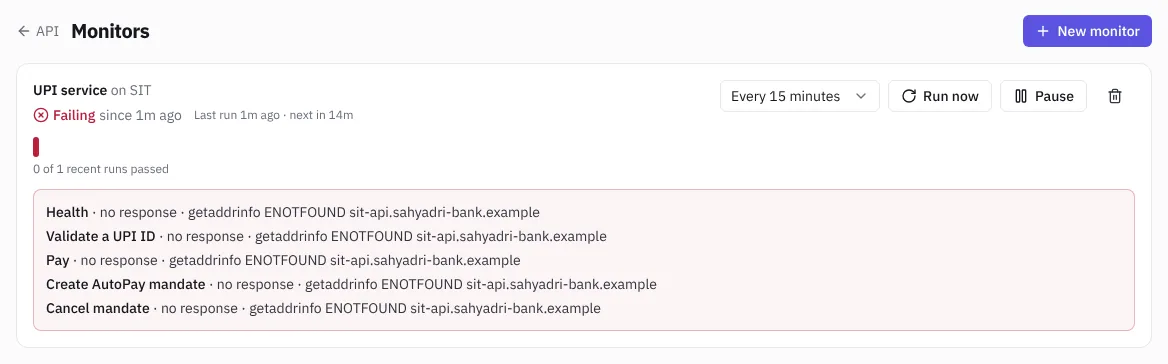 A failing monitor
Next to each monitor you can change how often it runs, choose Run now, Pause or Resume it (resuming runs it within a minute), or delete it. Deleting a monitor removes its run history; the collection and its requests stay.
Alerts: the person who set up the monitor and the project lead get an alert in their Inbox, and by email if they get email alerts, when the monitor starts failing and again when it passes. You aren't told about every failed run, only when the state changes.
Each collection can have one monitor per environment. A monitor reaches the same addresses as other requests (see below).
Link to stories
In a request's Issues tab, link the stories or bugs it proves. Their Quality section and the client release report then show the request's last result.
History lists earlier runs of the request with their results.
Import from Postman or cURL
Choose Import and either upload a Postman collection (v2.0 or v2.1 JSON, with folders, query and bodies) or paste a cURL command.
Where requests come from
Requests are sent from NaatOps's servers, not from your computer. NaatOps can reach any address that's on the internet, such as a public dev or staging URL. It can't reach addresses inside your office network or VPN, or localhost. If your test servers are private, open a public test URL for them or allow NaatOps's servers through your firewall.
Plan limits
The Free plan allows 200 API runs a month and Team 2,000. Delivery and the Firm Pack have no limit. See your usage in Settings › Billing. Runs from CI and from monitors count too. When the runs are used up, monitors skip their runs and say so until the next month or an upgrade.