Inbox and notifications
Your inbox, email settings, phone and desktop alerts, and Slack, Teams and Google Chat.
Inbox
Inbox collects work assigned to you, mentions, comments and changes to issues you watch. The count in the sidebar is how many are unread.
- Filter with All, Unread and Mentions.
- Click an item to open the issue; it's marked as read.
- Mark all read clears the count.
Choose what you hear about
Open Settings › My account (or Settings in the Inbox).
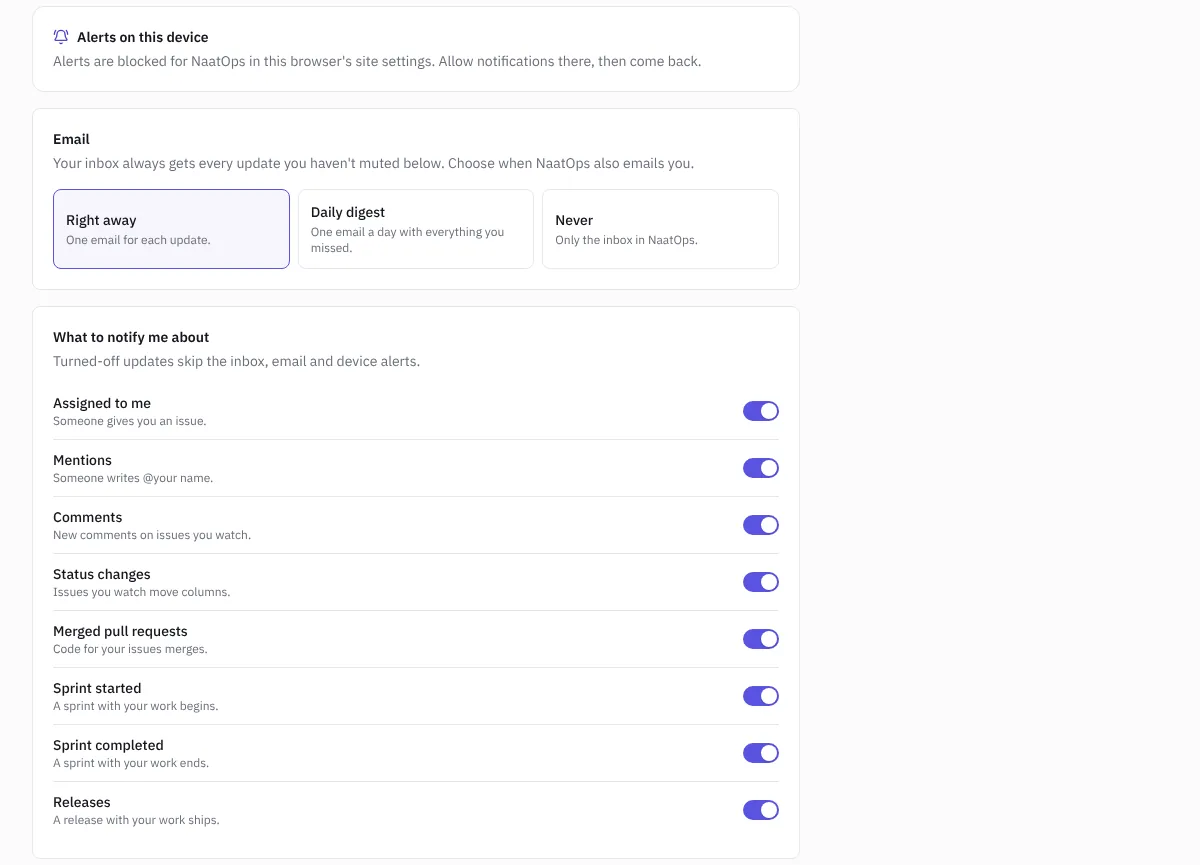 Notification settings
Email: choose Right away (one email per update), Daily digest (one email a day with what you missed) or Never (inbox only).
What to notify me about: turn each kind on or off: assigned to me, mentions, comments, status changes, merged pull requests, sprint started, sprint completed and releases. A kind you turn off skips the inbox, email and device alerts.
Alerts on this device
Get an alert on your phone or computer for each update, even when NaatOps is closed. In Settings › My account › Alerts on this device, choose to turn them on and allow notifications when the browser asks.
If alerts are blocked, allow notifications for NaatOps in your browser's site settings and come back. On iPhone and iPad, add NaatOps to your home screen first; see Use NaatOps on your phone.
Slack, Microsoft Teams and Google Chat
An owner or admin can post issue alerts into a Slack channel, a Microsoft Teams channel or a Google Chat space from Settings › Chat alerts. Each channel can cover every project or just some, and a burst of changes arrives as one summary. See Chat alerts.