Guide for managers and Scrum Masters
Run sprints, track releases, plan capacity and report progress to clients.
Give delivery managers, project managers, Scrum Masters and product owners the Manager role. It lets them plan; see Roles and permissions.
Run the sprint
- Start a sprint in Sprints by changing its status from Planned to Active. The board switches to it.
- Daily stand-up: open the board grouped by column, or the sprint's burndown in Sprints.
- Close the sprint by changing its status to Completed. Unfinished work goes to the next planned sprint or to the backlog; see Close the sprint.
- Retrospective: open Retrospective on the sprint. The team adds notes under Went well, To improve and Actions, and votes on them.
See Sprints and retrospectives.
Watch the numbers
- Reports in each project: velocity, say/do ratio, cycle time, lead time, created vs resolved, open work.
- Overview: open work across the workspace and what needs attention.
- Portfolio: every epic across projects, from idea to live, and each project's open bugs and overdue work.
- Delivery: DORA metrics, once repositories are connected.
See Reports and insights.
Plan people's time
People and capacity shows each person's load week by week for the next eight weeks. 100% is a full working week. Over 100% is flagged in red and approved leave shows in the week it falls. Choose Allocate to put someone on a project for a share of their week. See People and capacity.
Plan releases and roadmaps
- Roadmaps: a timeline per project, with progress from the linked epic. Late items are flagged.
- Releases: group work into versions, see readiness (done, open bugs, tests passed) and draft release notes.
- PI planning: plan a quarter across teams with objectives and dependencies.
See Roadmaps and PI planning and Releases and client reports.
Send the client proof
For each release, choose Share with client to create a read-only link. The client sees what shipped, the test cases that cover it with their results, and API checks. They don't see people, comments or anything outside the release, and they can print it or save it as a PDF. You can see whether the link has been opened, and revoke it at any time.
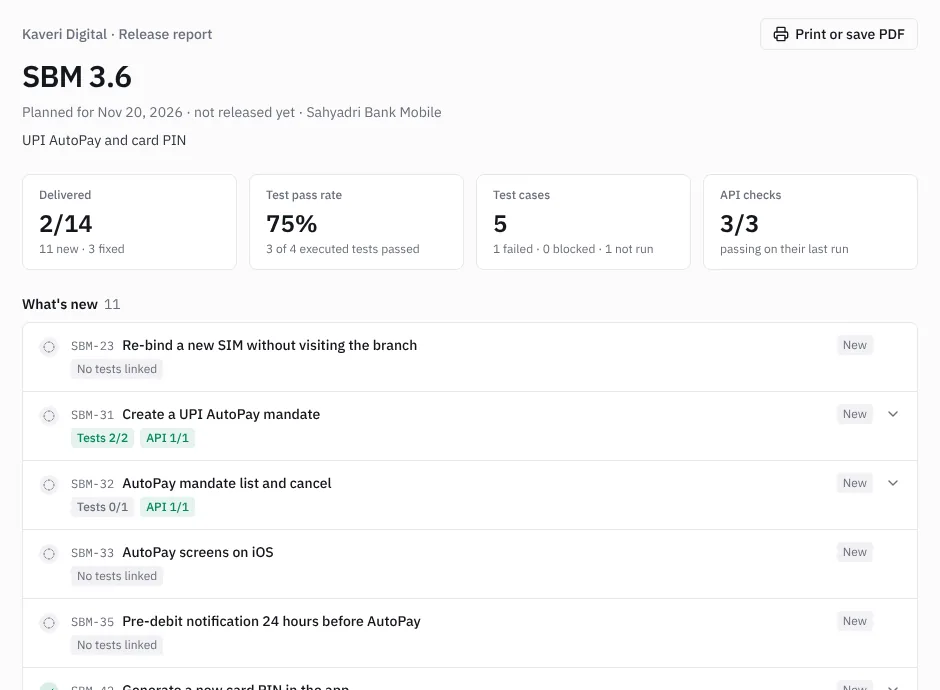 A client release report