Issue templates and recurring issues
Start common issues with the fields and sub-tasks filled in, and have NaatOps file regular ones on a schedule.
Some issues get filed again and again: a bug report with the same details, a release checklist, a weekly status report for a client. Templates fill them in for you, sub-tasks included. Recurring issues go further and file one from a template on a schedule.
Both live in Settings › Templates. Owners, admins and managers make and change them; everyone else can use the templates.
Make a template
- Open Settings › Templates and choose New template.
- Give it a Template name, such as Release checklist. People pick it by this name.
- Under Used in, keep All projects or pick the one project it's for.
- Fill in what the issue should start with. Everything is optional:
- Issue title. Use {date}, {week} or {month} to fill in the day the issue is made: Release sign-off {date} becomes Release sign-off 29 Oct 2026. {week} becomes Week 44, and {month} becomes October 2026.
- Description, Type, Priority, Assignee and Team.
- Due after (days): the due date is set this many days after the issue is made.
- Story points and Labels.
- For bugs and incidents: Severity, Environment and Steps to reproduce.
- Custom fields your workspace has.
- Under Sub-tasks, type each one and press Enter. Up to 30, created under the issue in this order. Sub-tasks can go under a story, task or epic, not a bug.
- Save it.
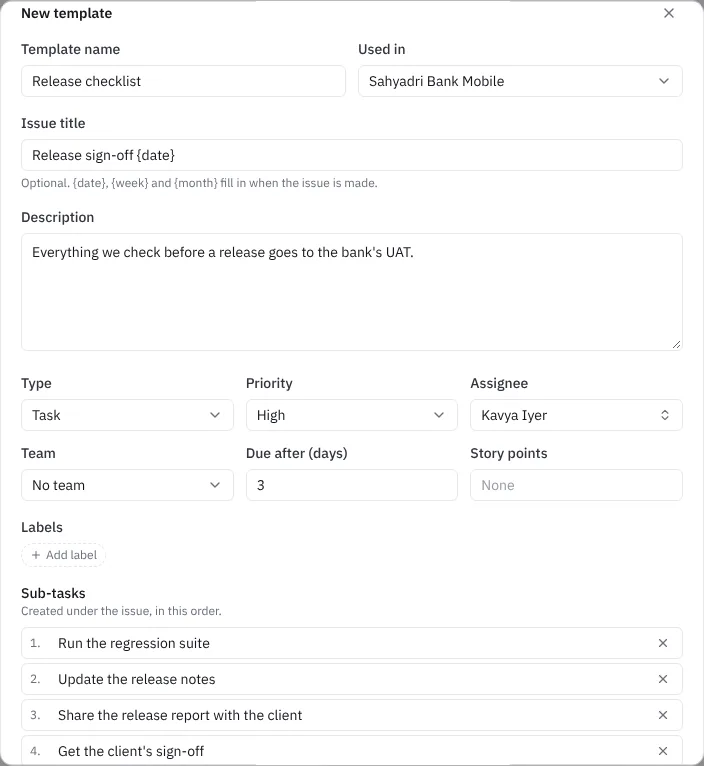 Making a template
The list shows each template's type, which projects it's for, how many sub-tasks it has and whether it repeats. Edit changes it; issues already made from it stay as they are. Remove deletes it; if a recurring issue still uses it, remove that first.
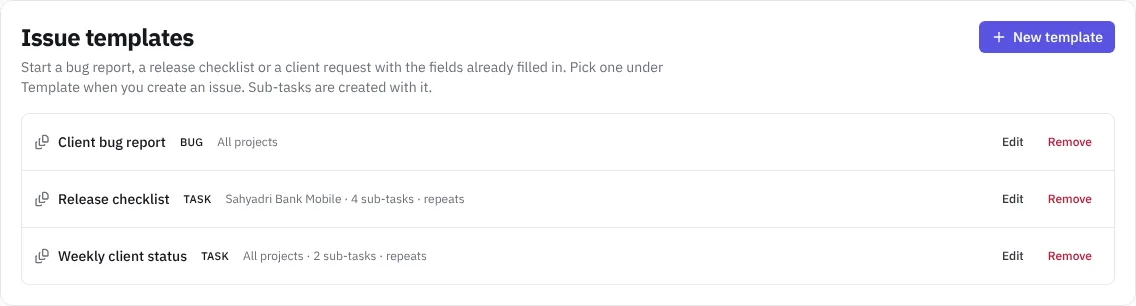 Templates in settings
Use a template
- Create an issue as usual (press C, or choose Create issue).
- Pick the template in the Template menu at the top of the window. The title, description and fields fill in, and any you change are yours.
- Sub-tasks are listed under Also creates N sub-tasks. Choose × next to any you don't need this time.
- Choose Create issue. The message says how many sub-tasks came with it, such as Created SBM-70 with 3 sub-tasks.
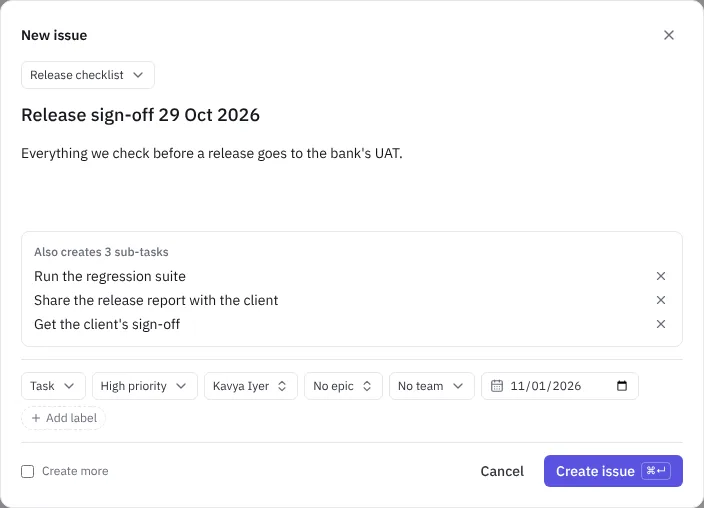 Creating an issue from a template
The menu shows templates for all projects and the ones for the project you're in.
Recurring issues
A recurring issue files a new issue from a template on a schedule, such as a weekly client status report or a month-end invoice check.
- In Settings › Templates, under Recurring issues, choose New recurring issue. Make the template first.
- Pick the Template and the Project the issues go into.
- Set the schedule:
- Repeats: Daily, Weekly or Monthly.
- Every: 1 to 12 days, weeks or months. For example, every 2 weeks.
- On: for weekly, the days of the week. For monthly, the day of the month. Pick Last day of the month for month-end work; shorter months use their last day.
- At: the hour, in the workspace time zone.
- Starting: the first day. Leave it empty to start today.
- Tick the options you want:
- Add it to the active sprint. Otherwise it goes to the backlog.
- Skip a run while the last one is still open, so unfinished copies don't pile up.
- Check the line at the bottom, which shows the schedule in words and the next three dates, then choose Start repeating.
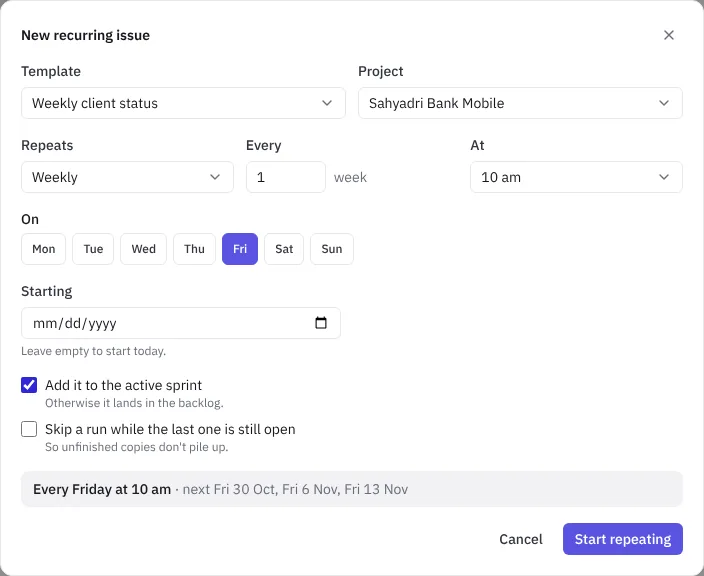 Setting up a recurring issue
Each recurring issue shows its schedule, when it runs next and the last issue it made, with a link.
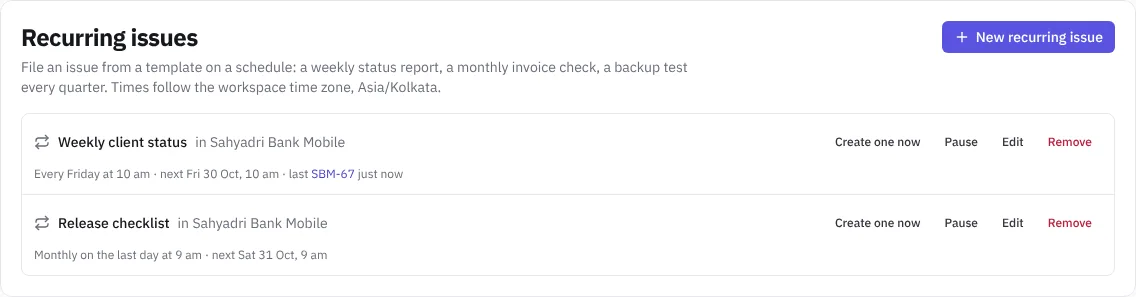 Recurring issues in settings
- Create one now files an issue straight away. The schedule doesn't change.
- Pause stops it until you choose Resume.
- Edit changes the template, project, schedule or options.
- Remove stops it for good. Issues it already made stay.
Good to know:
- Runs that were missed, for example while it was paused, aren't made up later.
- If the assignee has left the workspace or a label was deleted, the issue is still made, without them.
- When a run is skipped because the last issue is still open, the list says so.
- If the person who set it up can no longer create issues (for example, they left or became a viewer), it pauses and says why. Whoever edits and saves it takes it over, and it starts again.
- Making and changing templates and recurring issues is recorded in Settings › Audit log.