Releases and client reports
Group work into versions, track readiness, write release notes and share proof with clients.
A release is a version you ship, such as SBM 3.6. It can hold work from any project.
Create a release
- Open Releases and choose New release.
- Enter the version, such as 2.4.0, and a target date, then create it.
- Add issues: on the release page, use Add an issue to this release, or set Release on an issue.
The Releases page shows each release with its progress, open bugs and blocking bugs.
Check readiness
The release page shows:
- Done: the share of its issues that are done.
- In progress and not started.
- Open bugs, with blocking ones flagged.
- Tests passed: results from test runs linked to this release.
Below are the issues, the test results and the release notes.
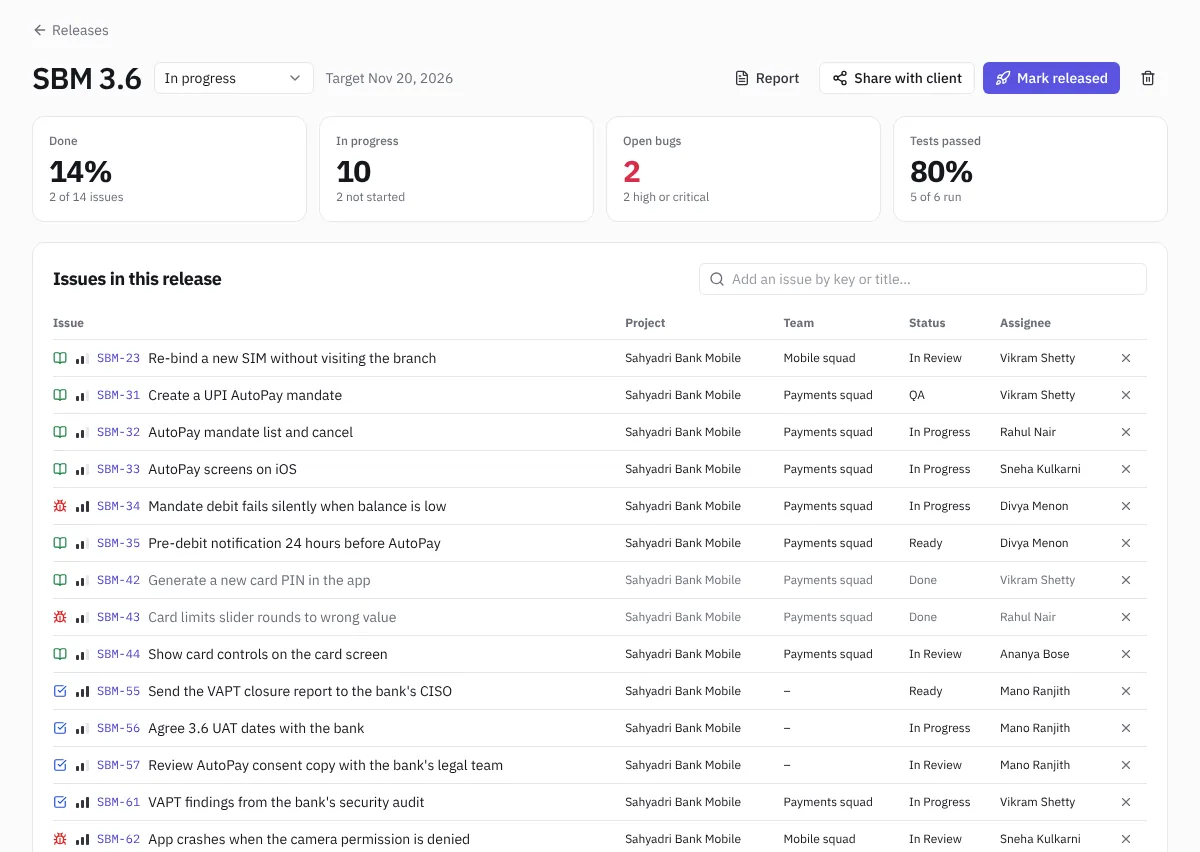 A release
Release notes
Choose Draft from done work to start the notes from the issues that are done, then edit them. Preview shows how they'll read. Markdown works.
Ship it
When the release goes out, choose Mark released. Everyone with work in it gets a notification, and the release counts as shipped in Portfolio.
Share with your client
- Choose Share with client.
- Optionally say who it's for, such as Acme UAT team, and how long the link works.
- Choose whether to include the release notes.
- Leave Let them accept the release or ask for changes ticked if you want the client's sign-off on the same page.
- Choose Create link, then Copy link and send it with your release mail.
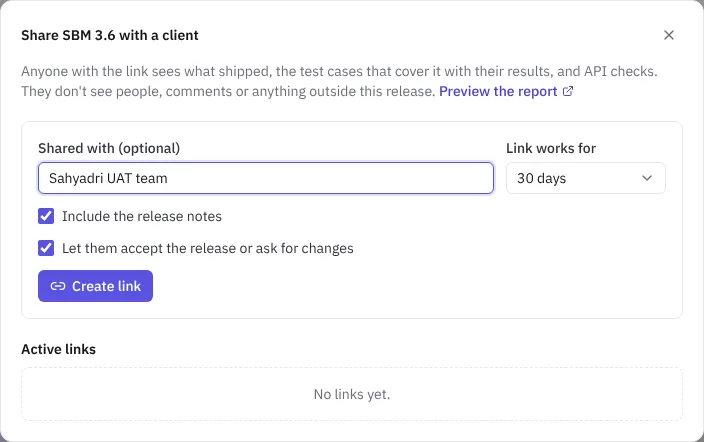 Sharing a release
The client opens a read-only page without signing in. It shows what's new and what's fixed, each story with its test cases and API checks and their results, and the overall test pass rate. It doesn't show people, comments or anything outside the release. They can choose Print or save PDF.
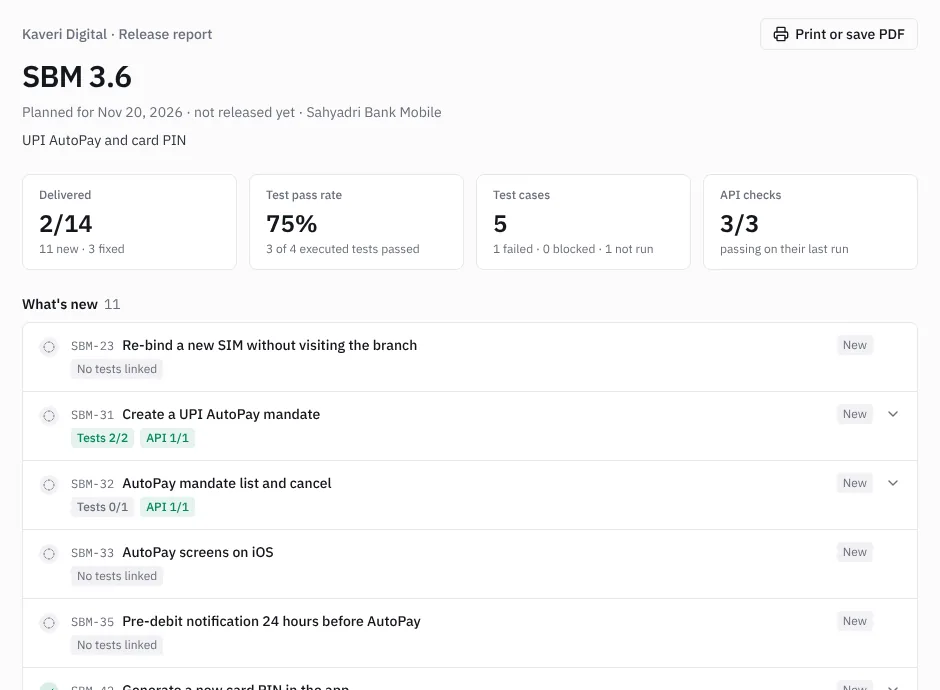 What the client sees
Under Active links you can see whether a link has been opened, and delete it to stop it working at once.
The Report button on the release page shows the same report to your team.
Get the client's sign-off
Replace the "please confirm by email" thread with a recorded sign-off.
- The client opens the report from your link, or opens the release in their client portal.
- Under Your sign-off they choose Accept release, or Ask for changes and say what needs to change.
- On a link, they also enter their name and work email. In the portal, NaatOps already knows who they are.
- They choose Send acceptance or Send to the team.
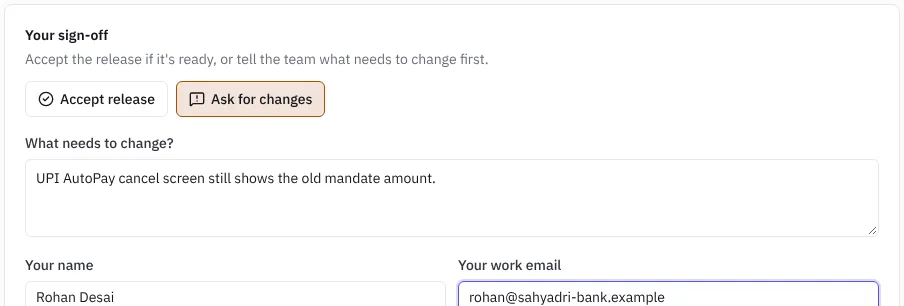 The client asking for changes on a release report
Owners, admins and managers get a notification. The release page shows a Client sign-off box with the latest decision, who made it and through which link, and every earlier sign-off below it. A client can sign off again, for example accepting once the changes are in.
 Sign-offs on the release page
Under Active links, links that allow sign-off say can sign off. To get a sign-off on an older link without it, create a new link with the box ticked.
Who can do what
Owners, admins and managers create, ship and share releases. Developers can add and remove issues. Releases and client reports need the Delivery plan or the Firm Pack, and they're included during the free trial.